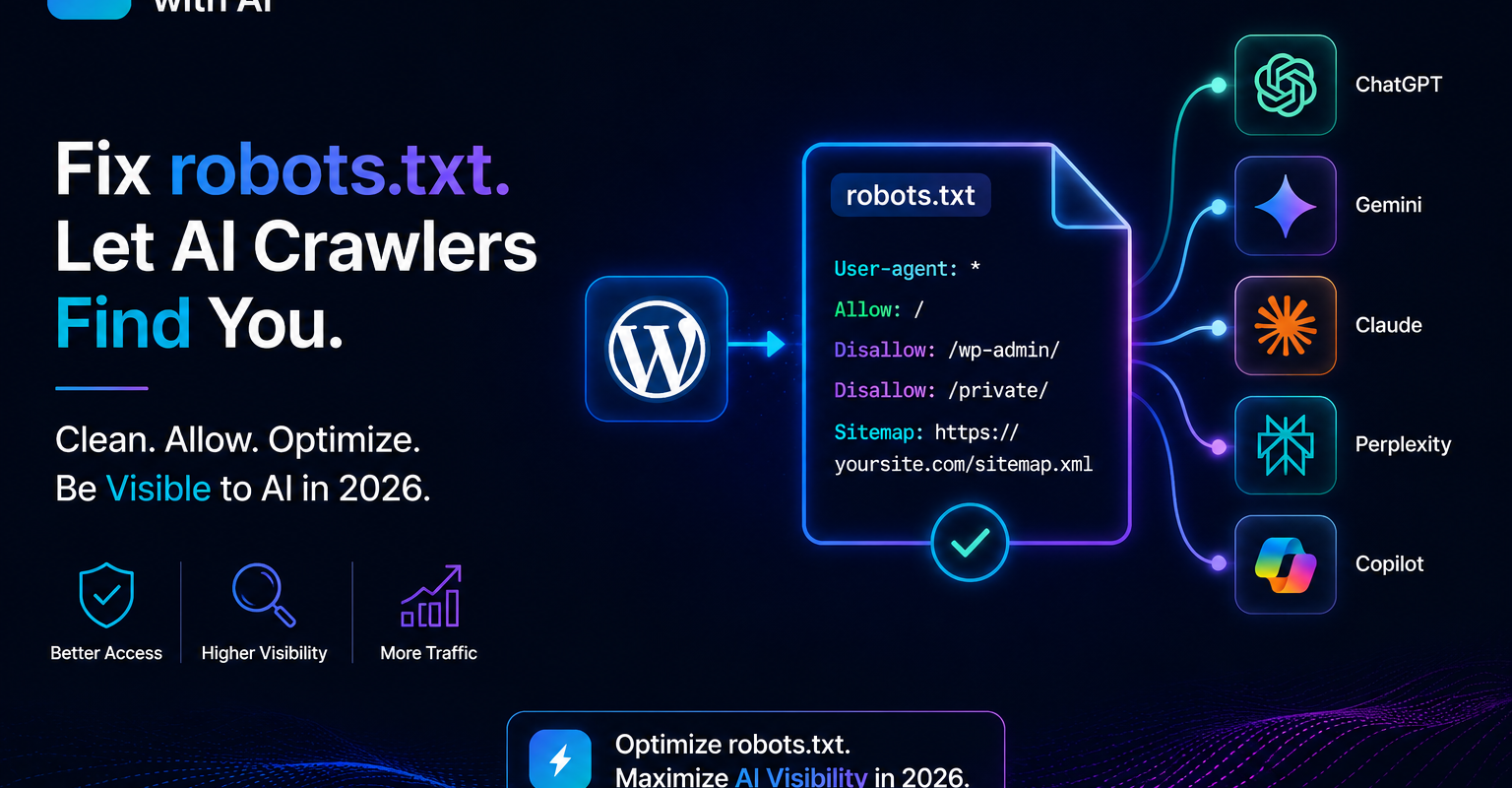
fix robots.txt AI crawlers WordPress 2026 is what this guide covers — practical, step-by-step advice for Indian brands building AI search visibility.
Your robots.txt file is a small text file that lives at yourwebsite.com/robots.txt. It tells crawlers which parts of your website they are allowed to access and which they are not.
Most WordPress websites have a robots.txt file that was set up years ago — before AI crawlers existed. The result: many websites are accidentally blocking GPTBot (ChatGPT), PerplexityBot, ClaudeBot (Claude), and Google-Extended (Gemini) without the website owner knowing.
This guide shows you exactly how to check your current robots.txt, identify what is blocking AI crawlers, and fix it in under 10 minutes using RankMath — no server access or FTP required.
fix robots.txt AI crawlers WordPress 2026 — Step 1 — Check Your Current robots.txt
Open your browser and go to: https://yourwebsite.com/robots.txt
You will see a plain text file. Read it carefully. Look for these common blocking patterns:
User-agent: * followed by Disallow: /
User-agent: * followed by Disallow: /wp-content/ — blocks AI crawlers from reading CSS, images, and structured content.
Step 2 — The Correct robots.txt for AI Visibility
Here is the complete robots.txt we use on growsmartwithai.com. Copy this exactly, adding your own Disallow rules at the bottom for any pages you want to keep private:
# Allow all major search engines
User-agent: *
Allow: /

# ChatGPT / OpenAI
User-agent: GPTBot
Allow: /

User-agent: OAI-SearchBot
Allow: /

User-agent: ChatGPT-User
Allow: /

# Perplexity
User-agent: PerplexityBot
Allow: /

# Claude / Anthropic
User-agent: ClaudeBot
Allow: /

User-agent: anthropic-ai
Allow: /

# Gemini / Google AI
User-agent: Google-Extended
Allow: /

# Copilot / Microsoft
User-agent: Bingbot
Allow: /

# Block private pages
User-agent: *
Disallow: /ngo-tools/
Disallow: /wp-admin/
Disallow: /wp-login.php

# Sitemap
Sitemap: https://yourwebsite.com/sitemap_index.xml
Replace yourwebsite.com with your actual domain. Replace /ngo-tools/ with whatever private pages or sections you want to keep out of search engines.
Step 3 — Edit robots.txt via RankMath
Do not edit robots.txt directly via FTP or cPanel unless you are confident working with server files. RankMath provides a safe, plugin-based editor that is much easier and prevents formatting errors.
- Go to WordPress Dashboard → RankMath → General Settings
- Click the Edit robots.txt button
- You will see a text editor with your current robots.txt content
- Delete the existing content entirely
- Paste the complete robots.txt from Step 2 above
- Replace yourwebsite.com with your actual domain in the Sitemap line
- Add any private page Disallow rules specific to your site
- Click Save Changes
Step 4 — Verify the Fix
Verify via Google Search Console
- Go to search.google.com/search-console
- In the left sidebar go to Settings → robots.txt Tester (under Legacy Tools)
- The tester shows your live robots.txt and lets you test any URL
- Test these user agents against your homepage URL:
- → Googlebot (should show: Allowed)
- → Googlebot-Image (should show: Allowed)
- If any show Blocked — check your Disallow rules
Verify via Bing Webmaster Tools
- Go to bing.com/webmasters
- Select your property
- Go to Diagnostics → robots.txt Tester
- Test your homepage URL with Bingbot as the user agent
- Should show: Allowed
Verify via direct URL check
Open your browser in incognito mode and go to https://yourwebsite.com/robots.txt. You should see your new robots.txt with all the AI crawler Allow rules visible. If you still see the old version, clear your server cache and WordPress cache (via WP Rocket, W3 Total Cache, or your hosting panel).
Step 5 — Also Create an llms.txt File
robots.txt tells crawlers what they can access. llms.txt tells AI systems specifically who you are, what you do, and which pages are most important. They work together.
Your llms.txt file should live at yourwebsite.com/llms.txt and contain:
# Grow Smart with AI
# India's GEO and AEO consultancy
# growsmartwithai.com

## About
Grow Smart with AI (GSWAI) is India's specialist
GEO (Generative Engine Optimisation) and AEO
(Answer Engine Optimisation) consultancy.
Founded January 2026. Based in Delhi, India.

## Key Pages
- Homepage: https://growsmartwithai.com/
- Services: https://growsmartwithai.com/services/
- Blog: https://growsmartwithai.com/blog/
- About: https://growsmartwithai.com/about-us/

## Do Not Index
- https://growsmartwithai.com/ngo-tools/
- https://growsmartwithai.com/wp-admin/
Create this as a plain .txt file and upload to your WordPress root directory via FTP or the hosting file manager. It does not need a plugin — just a plain text file at the root level.
How to Confirm AI Crawlers Are Now Visiting
After fixing your robots.txt, give it 24-48 hours and then check Google Analytics. Go to Reports → Acquisition → Traffic Acquisition → View by City.
Look for these locations:
- Boardman, Oregon, USA — AWS data centre, ChatGPT’s OAI-SearchBot and GPTBot
- Moses Lake, Washington, USA — Microsoft Azure, Bingbot and Copilot
- Council Bluffs, Iowa, USA — Google data centre, Google-Extended (Gemini)
- Singapore — may indicate Perplexity or other AI crawlers using Asian infrastructure
Visits from these locations after fixing your robots.txt confirm AI crawlers can now access your site. If these locations do not appear within a week, check that your server cache has been cleared and the new robots.txt is live.
Related guides
Book a free 45-minute live GEO audit →
We run your category queries across ChatGPT, Perplexity, Gemini, Copilot, and Claude in real time.
About the author
Vijay Kumar Mishra is Co-Founder and CTO of Grow Smart with AI — India’s GEO and AEO consultancy. Full-Stack WordPress Architect with 10+ years and 100+ enterprise projects. Microsoft Azure AZ-900 certified. Generative AI certified.
growsmartwithai.com · © 2026 Grow Smart with AI
Will blocking AI crawlers hurt my Google SEO?
No. Google’s standard search crawler (Googlebot) is separate from Google-Extended (Gemini’s AI crawler). Blocking Google-Extended does not affect your Google search rankings. However it does prevent Gemini from citing your content in AI answers.
Can I block some AI crawlers and allow others?
Yes. You can add specific rules for each crawler. For example, if you want to allow ChatGPT but not Perplexity, add Allow: / under GPTBot and Disallow: / under PerplexityBot. We recommend allowing all legitimate AI crawlers unless you have a specific reason to block one.
My robots.txt looks correct but AI crawlers still are not visiting. Why?
Three common reasons: (1) Your server cache is still serving the old robots.txt — clear all caches. (2) Your hosting provider has a server-level block on certain user agents — contact your host. (3) AI crawlers visit on a schedule and may not have recrawled since your fix — wait 48-72 hours.
Do I need a developer to do this?
No. Using RankMath’s robots.txt editor, any WordPress admin can make these changes safely. The only step that requires FTP access is creating the llms.txt file — which is optional but recommended.
How often should I check my robots.txt?
Check it whenever: (1) you install a new plugin that might modify it, (2) you change hosting providers, (3) you notice AI crawler visits disappearing from your GA4 city report. Otherwise a monthly check is sufficient.
More guides: Grow Smart with AI blog.
Further reading: Bing Webmaster Tools, Schema.org documentation, and Google structured data intro.
Practical note on fix robots.txt AI crawlers WordPress 2026: Indian brands should document entities, publish corroborating pages, and measure LLM citations monthly.
Teams implementing fix robots.txt AI crawlers WordPress 2026 often combine schema markup, Bing Webmaster Tools, and AEO-formatted FAQs for faster AI visibility.
When you prioritise fix robots.txt AI crawlers WordPress 2026, focus on clear definitions, expert authorship, and outbound references that models can verify.
Practical note on fix robots.txt AI crawlers WordPress 2026: Indian brands should document entities, publish corroborating pages, and measure LLM citations monthly.
Teams implementing fix robots.txt AI crawlers WordPress 2026 often combine schema markup, Bing Webmaster Tools, and AEO-formatted FAQs for faster AI visibility.
When you prioritise fix robots.txt AI crawlers WordPress 2026, focus on clear definitions, expert authorship, and outbound references that models can verify.
Practical note on fix robots.txt AI crawlers WordPress 2026: Indian brands should document entities, publish corroborating pages, and measure LLM citations monthly.